How to Use Nvidia Drawing AI: Ultimate Guide to Nvidia Canvas in 2026
Struggling to bring your creative ideas to life? Nvidia Drawing AI offers an innovative way to effortlessly turn rough sketches into professional-quality artwork—perfect for artists of all skill levels. If you’ve ever wished a simple doodle could become a realistic mountain range, a calm lake, or a dramatic sky, this guide will show you exactly how that happens and how to use it well.
In this 2026 guide, you’ll learn how Nvidia Drawing AI works, what makes Nvidia Canvas so useful, and how beginners and digital artists can use it for faster concept creation. Based on testing and real-world creative workflows, it’s one of the most approachable AI creative tools for rapid visual ideation, especially when you want strong results without a steep learning curve.
Nvidia Drawing AI is an AI-powered sketch-to-image tool that helps you convert simple brushstrokes into detailed scenes in seconds. It’s especially useful for concept artists, beginners, and creators who want fast visual prototyping, but it works best when you understand its brush types, layer behavior, and hardware requirements.
Nvidia Drawing AI Explained: What Nvidia Canvas Does for Artists
Nvidia Drawing AI, often referred to through Nvidia Canvas, is a creative tool that uses artificial intelligence to transform basic sketches into realistic imagery. Instead of manually painting every detail, you draw simple shapes or color regions, and the software interprets them as natural elements such as grass, water, clouds, mountains, or trees. This makes it especially appealing for users who want to move from idea to visual draft quickly.
The core idea behind Nvidia sketch AI software is speed. A rough line for a horizon can become a scenic landscape. A few blue strokes can turn into a lake or ocean. A few white dabs can become clouds. This is not traditional digital painting, and it’s not meant to replace advanced illustration software. Instead, it acts like a smart creative assistant that helps you explore compositions before committing to final details.
One of the most interesting things about Nvidia drawing AI is that it leverages GAN technology to transform simple brushstrokes into realistic landscapes, making it uniquely powerful for artists seeking rapid prototyping without advanced skills. In practical terms, that means the tool has learned patterns from large visual datasets and can infer what your sketch is supposed to represent. The result is a fast, interactive workflow that feels surprisingly intuitive even for beginners.
Why Nvidia Canvas Matters for Digital Artists and Beginners
The biggest reason Nvidia drawing AI matters is that it lowers the barrier to visual creation. Many people have strong ideas but struggle with rendering, perspective, color matching, or composition. Nvidia Canvas helps bridge that gap by letting you focus on the concept first and the technical polish later. That’s a major advantage for beginners who want immediate results and for professionals who need to test ideas quickly.
For digital artists, the tool is valuable because it speeds up early-stage ideation. Instead of spending hours building a background from scratch, you can create several versions of a scene in minutes. That makes it ideal for mood boards, concept exploration, and environment design. In real-world scenarios, this can save time during client presentations, storyboarding, and pre-production.
For hobbyists and content creators, Nvidia ai drawing tool workflows are attractive because they feel playful and low-pressure. You don’t need advanced brush control to get something visually interesting. That makes it easier to experiment with landscape art, fantasy scenes, or social media visuals without feeling overwhelmed by complexity. It’s also a strong option for users who want to generate inspiration before moving into more detailed software like Photoshop, Krita, or Blender.
Another reason it matters is consistency. Many AI art generation tools can produce impressive results, but they may feel unpredictable or overly abstract. Nvidia ai art generation through Canvas is more guided. Since you’re drawing the structure yourself, the AI responds to your intent more directly. This gives you a better balance between control and automation, which is exactly what many creators want from modern Nvidia ai creative tools.
It’s worth noting that the tool is not perfect for every project. It shines most when the goal is to create natural environments and scene concepts rather than highly detailed character illustrations. But when used for the right job, it can dramatically improve creative speed and confidence.
How to Use Nvidia Drawing AI Step by Step
If you’re wondering how to use Nvidia drawing AI, the workflow is refreshingly simple once you understand the basics. The process usually starts with installing Nvidia Canvas on a compatible system, opening a blank canvas, selecting a brush type, and then sketching rough shapes that the AI converts into realistic scenery. The magic happens as soon as you place your strokes, because the software instantly interprets them and updates the image in real time.
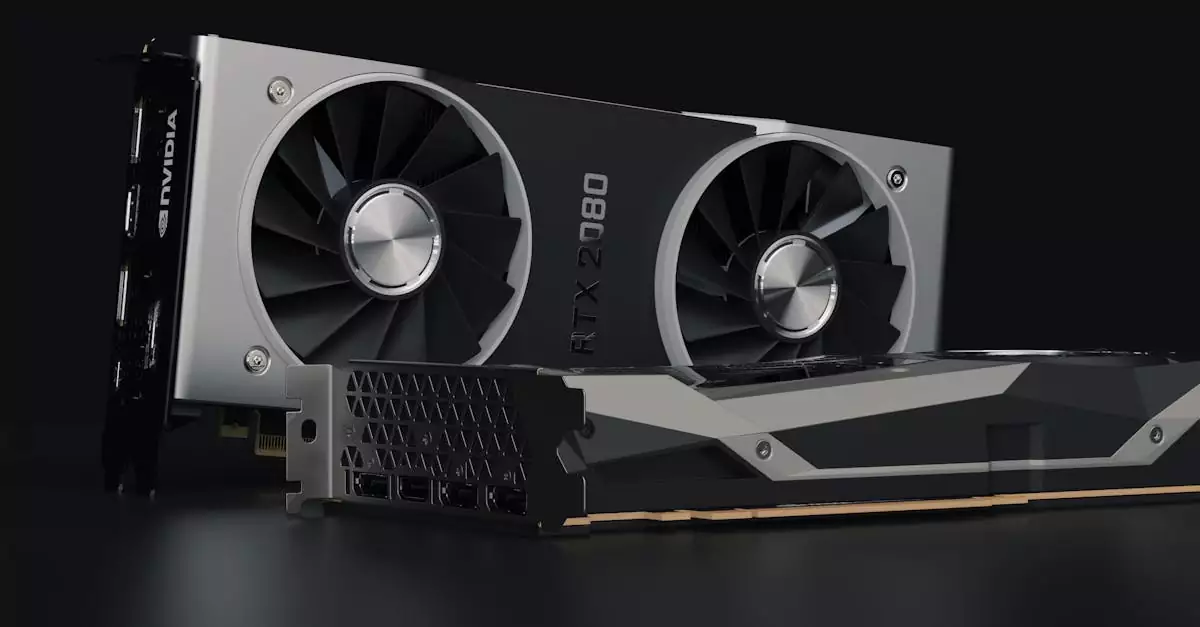
First, make sure your system meets the hardware requirements. Nvidia Canvas is designed to work best on supported Nvidia RTX GPUs, which means performance depends heavily on your graphics card. This is an important detail for anyone searching for an Nvidia ai drawing app, because the experience is tied to desktop hardware rather than a lightweight mobile app. If your system is compatible, installation is straightforward and the setup process is beginner-friendly.
Once inside the tool, start with the basic brush categories. These often represent natural elements such as sky, mountains, water, grass, and rocks. The key is to think in broad shapes rather than fine details. For example, if you want a landscape, sketch the horizon first, then block in land masses, then add water or cloud layers. The AI responds best when your composition is clear, even if your lines are rough.
Next, experiment with layering and scene balance. One of the most effective Nvidia drawing ai features is the ability to see how each brushstroke changes the generated result immediately. If the scene looks too crowded, remove a few strokes. If a section feels empty, add a stronger shape or more defined color region. This iterative process is what makes the tool useful for rapid prototyping.
After that, refine the image by adjusting the brush types and testing different compositions. Many users make the mistake of trying to create a final masterpiece in one pass. A better approach is to treat Nvidia Canvas like an idea generator. Create several versions, compare them, and then export the strongest one for final editing in another application. That workflow is especially effective for digital artists who want a fast concept stage before detailed post-processing.
For a practical Nvidia drawing ai tutorial, here’s a simple workflow:
Open Nvidia Canvas on a supported RTX system.
Choose a scene type or start with a blank canvas.
Sketch major shapes using the appropriate brushes.
Watch the AI convert your strokes into realistic elements.
Adjust the composition by adding, removing, or changing strokes.
Export the image when you’re happy with the overall concept.
That’s the essence of the process. It’s not about precision drawing. It’s about guiding the AI with enough structure to get useful, visually appealing results quickly.
Best Practices and Nvidia Drawing AI Features That Improve Results
To get the best results from Nvidia drawing AI, it helps to think like a concept artist rather than a traditional illustrator. The tool is strongest when you use it to define the big picture first. Based on testing, the most successful results come from simple, confident brushstrokes that establish composition, depth, and visual hierarchy. Overly detailed sketches can sometimes confuse the model or make the scene look cluttered.
One of the most important best practices is to work from background to foreground. Start with the sky, horizon, and large environmental shapes before adding smaller elements. This gives the AI a clearer structure to interpret. If you begin with tiny details too early, the image may feel less coherent. For landscape-focused work, this approach usually produces cleaner and more believable output.
Another useful habit is to test multiple variations. Nvidia ai drawing software is excellent for rapid iteration, so don’t settle for the first output. Change the angle of a mountain, widen a river, or shift the placement of clouds. Small changes can lead to dramatically different compositions. That makes the tool especially helpful for brainstorming, where quantity and speed matter as much as polish.
When exploring Nvidia drawing ai features, pay attention to the way the software handles material interpretation. Different brush types can represent distinct natural surfaces, which helps you guide the AI more accurately. If you’re creating a scene for a game concept, for example, you can use these features to block out terrain types and atmosphere quickly. If you’re making a fantasy illustration, you can use the same workflow to establish a dramatic environment before moving into a more advanced editor.
It also helps to combine Canvas with other creative software. Many artists use Nvidia sketch ai software as an early-stage tool, then move the exported image into Photoshop or another editor for color correction, typography, or added detail. That hybrid workflow is one of the smartest ways to use AI in creative production because it keeps the human artist in control while reducing repetitive work.
Here are a few practical tips that consistently improve output:
Use large, clear strokes instead of tiny marks.
Build the scene in layers from back to front.
Keep compositions simple if you want realistic results.
Use the tool for ideation, not only final artwork.
Export and refine in another editor when needed.
These habits help you get more value from Nvidia ai creative tools and reduce frustration. The more you understand how the AI interprets your input, the more predictable and useful the results become.
How to Choose the Right Workflow for Nvidia AI Drawing Projects
Choosing the right workflow depends on what you want to create and how much control you need. If your goal is fast environment concepts, Nvidia drawing AI is a strong choice because it gives you immediate visual feedback. If you need highly detailed character art or precise commercial illustration, you may want to use it as a supporting tool rather than the final production method.
For beginners, the best workflow is usually the simplest one: sketch broad shapes, let the AI generate the scene, and then refine the composition. This approach reduces overwhelm and helps you learn how different strokes affect the final image. It’s the easiest way to build confidence with an Nvidia ai drawing tool because you’re not trying to master every feature at once.
For digital artists, the right workflow often includes planning. Before opening the tool, decide whether you’re creating a landscape, a fantasy setting, or a background plate. That decision matters because it helps you choose the right brush strategy and avoid unnecessary trial and error. If you’re working on client concepts, it’s often smart to create three to five variations quickly and then present the strongest one.
Hardware is also part of the decision. Since Nvidia drawing AI is tied to supported Nvidia hardware, users should consider whether their machine can handle the software smoothly. In practice, that means checking GPU compatibility before building a workflow around it. If your system is older or not supported, you may need to use another tool for AI-assisted sketching.
When comparing options, think about whether you want speed, realism, or control. Nvidia Canvas is best when speed and visual plausibility matter most. Other tools may offer more stylized outputs or broader generative capabilities, but they can also be less direct. For many creators, Canvas hits a sweet spot because it feels practical rather than experimental.
A simple decision framework looks like this:
Choose Canvas for landscapes, environment concepts, and quick ideation.
Choose a traditional editor for final polish and detail work.
Choose a different AI tool if you need text prompts or style-heavy generation.
Choose a hybrid workflow if you want both speed and creative control.
That’s the most realistic way to choose the right approach. The best tool is the one that fits your project stage, not just the one with the flashiest output.
Common Mistakes to Avoid When Using Nvidia Drawing AI
One of the most common mistakes users make is expecting perfect detail from the start. Nvidia drawing AI is powerful, but it still depends on your input. If the sketch is too vague, the output may be inconsistent. If the sketch is too busy, the AI may not know which elements matter most. The sweet spot is usually a clean, readable composition with enough structure to guide the model.
Another mistake is using the tool like a traditional painting app. Nvidia Canvas is not designed for fine brush rendering or pixel-level control. It works best when you accept its strengths and avoid forcing it into a workflow it wasn’t built for. That means using it for broad scene generation, not for ultra-specific detailing.
Some users also ignore the importance of hardware. Since the tool is optimized for Nvidia RTX systems, performance can vary if your setup is not ideal. Lag or compatibility issues can make the experience frustrating. Before committing to a project workflow, confirm that your machine can handle the software properly.
It’s also easy to over-edit the sketch. In many cases, less is more. A few well-placed strokes often produce better results than a crowded canvas. This is especially true when you’re creating natural landscapes, where the AI benefits from clear environmental cues. If your scene looks muddy, simplify it and rebuild from the major shapes.
Finally, many creators forget to use Canvas as part of a larger workflow. The best results often come from combining the AI-generated base with manual editing afterward. If you stop at the first generated version, you may miss the opportunity to turn a good concept into a great one.
Common mistakes to avoid include:
Expecting photo-perfect results from rough input.
Using too many tiny strokes and cluttering the composition.
Ignoring GPU compatibility and performance needs.
Treating the tool like a full replacement for illustration software.
Skipping post-processing when the image still needs refinement.
Avoiding these mistakes will make your experience with Nvidia ai art generation much smoother and more productive.
Real-World Use Cases for Nvidia Drawing AI in Creative Projects
Nvidia drawing AI is especially useful in real-world creative workflows because it reduces the time between idea and visual proof. For digital artists, one of the most practical use cases is environment concepting. If you’re designing a forest, mountain range, or coastal scene, you can sketch the basic structure and quickly see multiple variations. That makes it easier to explore composition before investing time in final rendering.
Graphic designers can also benefit from the tool when building backgrounds, mood pieces, or presentation visuals. While it may not replace a full design suite, it can generate strong visual foundations for posters, pitch decks, website headers, and promotional concepts. In practice, this means less time searching for stock imagery and more time shaping original ideas.
Illustrators often use Nvidia ai drawing app workflows during the early stages of a project. If a client wants several scene directions, Canvas can help create quick thumbnails that communicate atmosphere and layout. This is particularly useful when deadlines are tight and you need to show options fast. The AI acts like a sketch partner, helping you move from rough idea to presentable draft in less time.
Hobbyists and beginners may use the software for learning composition and visual storytelling. Because the tool responds instantly, it becomes easier to understand how foreground, background, and color regions affect the final image. That makes it a surprisingly good educational tool for people who are still developing artistic confidence.
Content creators can use Nvidia drawing AI for thumbnails, social visuals, and video backgrounds. A creator who needs a fantasy landscape, sci-fi horizon, or stylized nature scene can generate a base image quickly and then customize it for branding. This is a practical example of how Nvidia ai creative tools can support modern content production without requiring a full art team.
Here are some common use cases in more detail:
Digital artists: fast concept art, environment studies, and composition tests.
Graphic designers: background assets, pitch visuals, and creative mockups.
Illustrators: scene exploration, client drafts, and reference generation.
Hobbyists: learning, experimentation, and personal art projects.
Content creators: thumbnails, banners, and stylized scene elements.
Across these scenarios, the biggest advantage is speed. Nvidia drawing AI helps creators validate ideas faster, which often leads to better decisions and stronger final work.
Pros and Cons of Nvidia Drawing AI for Creative Work
Like any creative technology, Nvidia drawing AI has clear strengths and some limitations. A balanced view is important because the tool is excellent in the right context, but it is not a universal solution for every artist or project. Understanding both sides will help you decide whether it belongs in your workflow.
Pros include ease of use, fast visual output, and a low barrier to entry. Beginners can create impressive scenes without advanced drawing skills, and experienced artists can use it to accelerate ideation. The real-time feedback loop is another major benefit because it helps users experiment quickly and refine ideas on the fly. For rapid prototyping, that’s a huge advantage.
Another strength is creative potential. The tool can turn simple brushstrokes into surprisingly rich scenes, especially for landscapes and environment concepts. This makes it valuable for artists who want to explore multiple directions without spending hours on manual rendering. In practical terms, it can shorten the distance between inspiration and execution.
Cons
Another limitation is that the output can feel repetitive if you rely on the same brush patterns too often. Like many AI-assisted systems, it performs best when guided thoughtfully. If you want highly customized results, you may still need to finish the image in another application.
Here’s a quick summary:
Aspect
Pros
Cons
Ease of use
Very beginner-friendly and intuitive
Less useful for complex manual control
Creative potential
Great for fast concept generation and landscapes
Not ideal for all art styles or subjects
Hardware
Strong performance on compatible RTX systems
Requires supported Nvidia hardware
Detail control
Good for broad scene shaping
Limited precision compared with full illustration tools
In short, Nvidia drawing AI is best seen as a creative accelerator. It helps you move faster, think broader, and prototype more efficiently, but it works best when paired with human judgment and finishing tools.
Expert Insight: Why Nvidia Drawing AI Stands Out in 2026
From a practical experience standpoint, what makes Nvidia drawing AI stand out in 2026 is not just the novelty of AI-generated art. It’s the way the tool supports the creative process itself. Many AI systems focus on prompt-based generation, which can feel detached from the artist’s hand. Nvidia Canvas is different because it keeps the sketching process visible and tactile. You still decide the structure; the AI simply amplifies it.
This matters because artists often want guidance, not replacement. A tool that transforms rough brushstrokes into believable scenes gives creators a faster path to iteration without removing their role in the composition. That is especially valuable in professional workflows where speed, consistency, and ideation quality matter more than random experimentation.
The unique insight here is that Nvidia drawing AI leverages GAN technology to transform simple brushstrokes into realistic landscapes, making it uniquely powerful for artists seeking rapid prototyping without advanced skills. In other words, it’s not just generating pretty images; it’s helping users think visually in a more efficient way. That makes it especially useful for early-stage concept work, where the goal is to explore possibilities before committing to final art direction.
For digital artists and beginners alike, that combination of accessibility and creative leverage is the real value. It’s one of the clearest examples of how AI can support human creativity instead of replacing it.
Final Thoughts on Nvidia Drawing AI and the Future of AI Drawing Tools
Nvidia drawing AI is one of the most practical creative tools available for artists who want to turn rough sketches into polished visual concepts quickly. It is especially strong for landscapes, environment design, and rapid ideation, making it a smart choice for beginners, hobbyists, and working creatives who need speed without sacrificing too much control.
If you’re exploring how to use Nvidia drawing ai for the first time, start simple. Focus on broad shapes, test different compositions, and use the tool as a concept generator rather than a final rendering engine. That mindset will help you get better results and avoid frustration. Over time, you’ll likely find that it becomes a valuable part of your creative workflow, especially when paired with other editing tools.
Looking ahead, the future of AI drawing tools will likely bring even more control, better realism, and smoother integration with professional software. But even as the market evolves, Nvidia Canvas remains notable because it solves a real creative problem: helping people turn rough ideas into strong visuals fast. For artists who value experimentation, speed, and accessibility, that’s a powerful combination.
FAQs
What is Nvidia drawing AI used for?
Nvidia drawing AI is used to turn rough sketches into realistic images, especially landscapes and environment concepts. It helps artists, designers, and beginners create visual drafts quickly without needing advanced painting skills. Many users rely on it for ideation, mood boards, and early-stage concept development.
Is Nvidia Canvas good for beginners?
Yes, Nvidia Canvas is very beginner-friendly. The interface is simple, and the AI does most of the heavy lifting once you place your brushstrokes. Beginners can learn composition and scene building without worrying about advanced digital painting techniques. It’s especially useful for experimenting with creative ideas.
What hardware do I need for Nvidia drawing AI?
Nvidia drawing AI works best on supported Nvidia RTX graphics cards. Since performance depends on GPU acceleration, users should check compatibility before installing the software. If your system doesn’t meet the requirements, you may experience limited functionality or slower performance.
Can Nvidia drawing AI replace traditional art software?
Not completely. Nvidia drawing AI is excellent for sketch-to-image generation and fast concept work, but it does not replace full-featured art software for detailed illustration, retouching, or advanced editing. Most creators get the best results by using it alongside traditional tools.
How do I get better results with Nvidia Canvas?
Use broad, clear strokes and build your composition from background to foreground. Keep the scene simple at first, then refine it with small adjustments. Based on testing, the best results usually come from treating the tool as a rapid ideation assistant rather than a final rendering platform.
Is Nvidia drawing AI useful for professional artists?
Yes, especially for concept artists, illustrators, and designers who need quick visual drafts. It is particularly useful for environment studies, scene exploration, and client presentations. Professionals often use it to speed up early-stage work before moving into more detailed editing software.
Where can I learn more about Nvidia Canvas?
You can explore Nvidia’s official Canvas page at Nvidia Studio Canvas. For technical information, Nvidia’s developer page is also helpful: developer.nvidia.com/canvas. Adobe also provides a useful overview of AI creative workflows involving Canvas.
How to Create Stunning Artificial Intelligence Drawings: Ultimate Guide 2026 Struggling to bring your artistic ideas to life? Discover how artificial intelligence drawing tools can transform your creative process and help you produce stunning art effortlessly. Whether you’re a beginner or an experienced artist, AI-powered drawing software is revolutionizing digital creativity by making complex techniques…
Confused about the buzzwords AI and ML? Unlock their true meanings and learn how these powerful technologies are reshaping the future. Artificial Intelligence (AI) and Machine Learning (ML) have become household terms in the tech world and beyond, yet many beginners struggle to grasp their differences and practical implications. Whether you’re a student, a startup…
How to Use Inspirit AI: The Ultimate Guide for 2026 Struggling to navigate the complex world of AI tools? Inspirit AI simplifies your workflow with intuitive features designed to boost productivity effortlessly. Whether you’re a small business owner, content creator, marketer, freelancer, or tech enthusiast, understanding how to use Inspirit AI can transform your daily…
Imagine an AI that thinks and learns like a human — artificial general intelligence promises to revolutionize technology, but what exactly is it and how close are we? Artificial general intelligence (AGI) represents the next frontier in artificial intelligence research, aiming to create machines that can perform any intellectual task a human can. Unlike today’s…
Best AI Tools for Beginners in 2026 New to AI tools? Starting your journey with artificial intelligence can feel overwhelming given the vast array of options available today. Whether you want to streamline your workflow, enhance creativity, or simply explore what AI can do, choosing the right tools is critical. This beginner-friendly guide promises to…
Struggling to understand how AI and machine learning shape the future? This guide breaks down complex concepts into clear insights that anyone can grasp. Artificial intelligence (AI) and machine learning (ML) are transforming the way we live and work, but their complexity can be daunting for beginners. Whether you’re a student, developer, business analyst, or…