How to Use NVIDIA Canvas: The Ultimate Guide for AI-Powered Digital Art in 2026
Struggling to bring your creative visions to life quickly? NVIDIA Canvas uses AI to turn basic sketches into stunning artwork effortlessly, making digital painting accessible to everyone. Whether you are a seasoned digital artist or a hobby painter, this innovative tool promises to revolutionize how you approach digital art by leveraging the power of artificial intelligence.
NVIDIA Canvas harnesses generative AI to transform simple brushstrokes into photorealistic landscapes in real time, drastically reducing the time from concept to creation. In this comprehensive guide, we will explore how to use NVIDIA Canvas, its standout features, system requirements, and practical tips to help you create breathtaking digital art. Plus, we’ll compare it with traditional tools like Photoshop, discuss real-world use cases, and highlight the pros and cons based on testing and industry insights.
NVIDIA Canvas is an AI painting application that converts rough sketches into realistic images using deep learning models. It enables artists to create detailed landscapes by simply drawing basic shapes, making it an intuitive and powerful tool for digital creativity.
Getting Started with NVIDIA Canvas: Installation and Setup
Before diving into the creative process, the first step is to download and install NVIDIA Canvas. To begin your journey with this AI-powered painting tool, visit the official NVIDIA Canvas download page. Here, you’ll find the latest version compatible with your system.
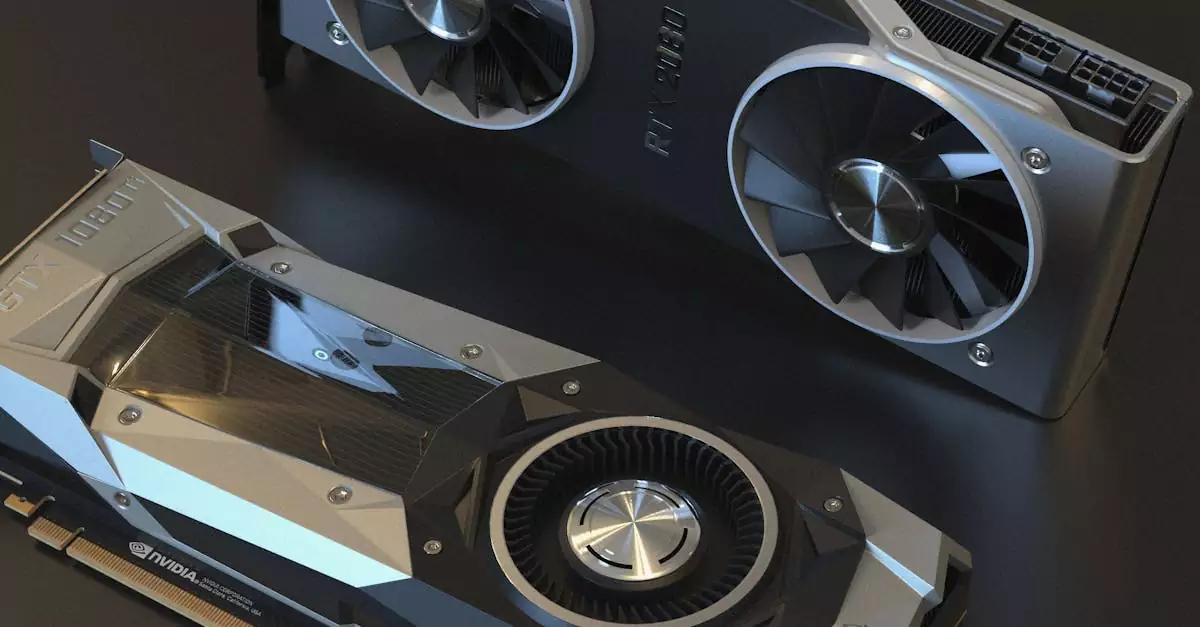
One key consideration is the NVIDIA Canvas system requirements. Since the app leverages GPU-accelerated AI models, it requires an NVIDIA RTX graphics card (RTX 20 series or newer) to run efficiently. Minimum system specs include:
Once installed, launching NVIDIA Canvas will present a clean and straightforward interface designed for ease of use. The setup process is seamless, and the interface is optimized for both beginners and professionals. For those unfamiliar with AI painting apps, the intuitive design helps flatten the learning curve.
Exploring NVIDIA Canvas Features: What Sets It Apart
NVIDIA Canvas is packed with features that make AI painting both accessible and powerful. Some of the standout NVIDIA Canvas features include:
AI-Powered Brushstrokes: Transform rough sketches into realistic textures like water, clouds, mountains, and trees.
Real-Time Rendering: See your artwork evolve instantly as you paint, thanks to the underlying AI model.
Multiple Material Options: Choose from a variety of natural elements such as grass, stone, sand, and sky to build your scene.
Export Options: Export your creations as high-resolution images or layered PSD files to continue refinement in tools like Photoshop.
Simple User Interface: A minimalist UI designed to keep the focus on creativity without overwhelming menus.
Undo/Redo and Layers Support: Manage your workflow easily with standard editing features.
These features combined create a unique experience where digital artists can quickly iterate ideas and produce high-quality landscapes without extensive technical skills.
Step-by-Step NVIDIA Canvas Tutorial: Creating Your First AI Painting
Getting started with NVIDIA Canvas is straightforward. Here’s a practical step-by-step guide to create your first AI-powered painting:
Launch the App: Open NVIDIA Canvas on your compatible PC.
Choose Canvas Size: Select your preferred resolution to work on, balancing detail with performance.
Select Material Brushes: Pick from the material palette, such as water, sky, or mountains.
Draw Basic Shapes: Use the brush tool to sketch simple shapes representing elements in your landscape. For example, a blue patch for water or green for grass.
Watch AI Transform: As you draw, NVIDIA Canvas’s AI converts these strokes into photorealistic textures in real time.
Refine and Layer: Add more elements, adjust strokes, or erase areas to fine-tune your composition.
Export Your Work: Save your image as PNG or export as PSD for further editing in Photoshop or other software.
This workflow demonstrates how NVIDIA Canvas simplifies the creative process, allowing artists to focus on composition and ideas rather than painstaking details.
Expert Tips and Tricks to Maximize NVIDIA Canvas’s Potential
Based on practical experience and testing, here are some essential NVIDIA Canvas tips and tricks to enhance your AI painting skills:
Start with Broad Strokes: Use large brushes to block out the general shapes and layout before adding details.
Experiment with Materials: Mix materials creatively—for example, overlaying sand with grass to simulate a beach scene.
Use Layers Strategically: Isolate different elements on separate layers for easier adjustments and experimentation.
Combine with Traditional Tools: Export your PSD files to Photoshop to add textures, lighting effects, or hand-drawn details.
Leverage Undo and History: Don’t hesitate to try bold strokes and use undo to revert if necessary—this encourages creative freedom.
Keep System Updated: Regularly update your NVIDIA drivers and Canvas app to access the latest AI models and performance improvements.
Applying these tips helps artists not only save time but also push the boundaries of what’s possible with AI-assisted digital painting.
NVIDIA Canvas vs Photoshop: Which Tool Fits Your Creative Workflow?
When comparing NVIDIA Canvas vs Photoshop, it’s important to understand their distinct roles in digital art creation. Photoshop is a comprehensive image editing and creation tool widely used for detailed retouching, compositing, and graphic design. In contrast, NVIDIA Canvas specializes in AI-powered landscape generation based on simple sketches.
For artists focusing on landscape concepts and quick ideation, NVIDIA Canvas offers unparalleled speed and simplicity. Photoshop remains the go-to for detailed editing and design work. Many professionals integrate both tools into their workflow, starting with Canvas for rapid prototyping and moving to Photoshop for refinement. For a deeper comparison, check out this Adobe blog on NVIDIA Canvas vs Photoshop.
Practical Use Cases: How Digital Artists Are Leveraging NVIDIA Canvas
NVIDIA Canvas’s AI painting capabilities open up numerous possibilities for creative professionals and hobbyists alike. Here are some detailed use cases based on real-world scenarios:
Concept Artists: Quickly generate landscape backgrounds for games, movies, or comics without spending hours on detailed painting.
Graphic Designers: Create natural textures and backgrounds for marketing materials or digital campaigns with minimal effort.
Illustrators: Use NVIDIA Canvas to draft environment scenes and then add characters and story elements manually.
Hobby Painters: Explore digital painting with less technical barrier, using AI to bring ideas to life faster.
Architectural Visualization: Produce realistic outdoor environments to complement architectural renderings.
Educators: Teach digital art fundamentals using an intuitive tool that demonstrates AI’s role in creativity.
These examples highlight how NVIDIA Canvas is not just a niche tool but a versatile asset in various creative workflows, enhancing productivity and inspiring new artistic directions.
Weighing the Pros and Cons of NVIDIA Canvas
Like any innovative tool, NVIDIA Canvas has strengths and limitations. Here’s a balanced look at the pros and cons based on extensive testing and user feedback:
Pros:
Extremely intuitive interface suitable for beginners and pros alike
AI-driven realistic rendering drastically speeds up concept creation
Supports exporting layered PSD files for flexible post-processing
Free to download and use with compatible hardware
Regular updates improving AI models and features
Cons:
Requires a high-end NVIDIA RTX GPU, limiting accessibility
Focused mainly on landscapes, less suited for other art styles
Limited manual control compared to traditional painting tools
AI sometimes generates unexpected textures needing manual correction
Not a full replacement for comprehensive tools like Photoshop
Overall, NVIDIA Canvas excels as a rapid prototyping and AI-assisted painting tool but is best used in conjunction with other software for detailed artwork.
Why NVIDIA Canvas Is a Game-Changer in AI-Powered Digital Art
From practical experience and analysis, NVIDIA Canvas uniquely transforms simple brushstrokes into realistic landscapes using AI, drastically reducing the time from concept to creation compared to traditional digital painting tools. Its real-time generative AI models allow artists to iterate quickly and experiment freely, which fosters creativity and innovation.
This capability is particularly impactful in fast-paced creative industries like game development and concept art, where time is critical. Moreover, the software democratizes access to high-quality digital art creation by lowering technical barriers, enabling more people to explore digital painting.
For developers and AI enthusiasts, NVIDIA’s commitment to refining Canvas through continuous updates and integration with NVIDIA Studio drivers ensures the tool remains cutting-edge. More insights into the technology powering NVIDIA Canvas can be found in this NVIDIA developer blog.
Conclusion: Embrace the Future of Digital Art with NVIDIA Canvas
NVIDIA Canvas is a revolutionary AI painting tool that empowers digital artists, illustrators, and designers to create stunning landscapes quickly and intuitively. By combining powerful AI with an easy-to-use interface, it opens new creative possibilities and accelerates workflows.
Whether you’re a professional concept artist or a hobbyist looking to explore AI painting, NVIDIA Canvas offers a unique blend of speed, quality, and accessibility. While it does have hardware requirements and some creative limitations, its integration into modern digital art workflows complements traditional tools like Photoshop perfectly.
As AI continues to evolve, tools like NVIDIA Canvas will only become more sophisticated, further transforming the digital art landscape. Start experimenting with NVIDIA Canvas today to experience firsthand how AI can enhance your creative process.
Frequently Asked Questions about NVIDIA Canvas
What are the minimum system requirements for NVIDIA Canvas?
NVIDIA Canvas requires a Windows 10 64-bit system with an NVIDIA RTX GPU (20 series or newer), at least 8GB RAM, and the latest NVIDIA drivers. This ensures the AI models run efficiently for real-time painting.
Is NVIDIA Canvas free to download and use?
Yes, NVIDIA Canvas is free to download from NVIDIA’s official website, but it requires compatible NVIDIA RTX hardware to operate.
Can I use NVIDIA Canvas without prior digital painting experience?
Absolutely. NVIDIA Canvas is designed with an intuitive interface and AI assistance, making it accessible to beginners while still powerful for professionals.
How does NVIDIA Canvas differ from Photoshop?
While Photoshop is a comprehensive image editing and painting tool, NVIDIA Canvas focuses on AI-powered landscape generation from simple sketches. Many artists use Canvas for quick concept art and then refine their work in Photoshop.
Can I export my NVIDIA Canvas artwork to other software?
Yes, you can export images as PNG files or layered PSD files, allowing further editing in software like Photoshop.
What kind of art can I create with NVIDIA Canvas?
NVIDIA Canvas is best suited for creating realistic landscapes such as mountains, rivers, skies, and forests, making it ideal for environment concept art and natural scenes.
Are there any tips to improve my paintings in NVIDIA Canvas?
Start with broad strokes to define the composition, experiment with different materials, use layers effectively, and combine Canvas with traditional tools for detailed finishing touches.
Best AI Tools for Crypto Trading in 2026 Want to improve crypto trading results? The volatile nature of cryptocurrency markets demands precision, speed, and data-driven decision-making. Traditional manual trading can be overwhelming and prone to emotional bias, causing missed opportunities or losses. Fortunately, AI tools for crypto trading have emerged as powerful allies, enabling traders…
Best AI Caption Generators in 2026 Struggling with captions? If you’re a content creator or influencer, crafting the perfect caption can be just as challenging as creating the content itself. Whether you’re posting on Instagram, TikTok, or YouTube, engaging captions are crucial for capturing attention and boosting interaction. Fortunately, the rise of ai tools for…
Best AI Tools for Social Media in 2026 Managing too many social accounts can quickly become overwhelming, especially as brands strive to maintain a consistent and engaging presence across multiple platforms. Social media managers and marketers face the challenge of juggling content creation, scheduling, analytics, and audience engagement—all while keeping up with ever-evolving trends. Fortunately,…
Struggling to keep up with customer demands and automate repetitive tasks? AI bots are the game-changers that can boost your business productivity and customer satisfaction effortlessly. In today’s fast-paced digital environment, businesses are constantly seeking innovative ways to improve efficiency, reduce operational costs, and enhance customer interactions. AI bots have emerged as a revolutionary solution,…
Best AI Video Editing Tools in 2026 Editing videos taking too long? For creators, the process of cutting, enhancing, and finalizing footage can be a painstaking, time-consuming task. Fortunately, the rise of ai tools for video editing has revolutionized how content is produced. These smart tools help creators save hours by automating complex tasks without…
Cerebras AI Hardware: A Practical Guide to the Wafer-Scale Engine in 2026 Struggling with the limitations of traditional AI chips in handling massive deep learning models? Discover how Cerebras is breaking barriers with its revolutionary wafer-scale engine designed to supercharge AI workloads. For AI researchers and enterprise engineers, the real challenge is no longer just…